




- Product details page
- Category page (xcart 4.x)
- Search page (xcart 4.x)
- Featured products block (xcart 4.x)
- New Arrivals block (xcart 4.x)
- Bestsellers block (xcart 4.x)
- Recently Viewed block (xcart 4.x)
- Manual install elsewhere
Supported pages & blocks
Features you'll love...
- Responsive
- Fast
- Built with SEO in mind
- Image caching
- Easy to customise
- Auto image resizing
- Scrollable thumbnails
- Supports all templates
- Watermarked images
- On-demand loading
- Regularly updated
- jQuery compatible
- One-off payment
- X-Cart 4.0 - 4.7.x
- X-Cart 5 (Mobile, Business, Premium)
Does content quality influence you when purchasing online? For 77% of consumers it does.
While product descriptions are on you – we can definitely help with a sleek image zoom tool.
This X-Cart image zoom enables customers to see the smallest detail of your products. With 4 zoom options to choose from (internal zoom, external zoom, magnify and preview) the aesthetic will fit perfectly with your store's design.
If you prefer to zoom and enlarge your product images, try the magnificent Magic Zoom Plus! This incredible zoom and lightbox X-Cart module enlarges product images to full-screen. Perfect for iPad and iPhone shoppers!
Verified by X-Cart:
Read reviews of Magic Zoom on the official marketplace for X-Cart 5 addons.
Installation
X-Cart 4.x installation
- Download Magic Zoom for X-Cart 4.x (free and fully functional demo version).
- Unzip the file on your computer and FTP the magiczoom folder to your X-Cart directory (on your server), keeping the file and folder structure intact.
- Go to http://www.yoursite.url/magiczoom/ in your browser > click 'Install' (replace yoursite.url with your domain name).
- Go to http://your.site.url/admin/magiczoom.php and configure Magic Zoom as you wish.
- That's all

- Buy Magic Zoom To upgrade your free and fully functional trial version of Magic Zoom (which removes the "Trial version" text), buy Magic Zoom and overwrite following file with the same one from your licensed version:
modules/MagicToolbox/magiczoom/magiczoom.js
X-Cart 5 installation
Automatic installation
Buy Magic Zoom directly from X-Cart 5 Marketplace!

- Go to Magic Zoom on the X-Cart market to buy this X-Cart 5 addon.
- Click 'Add to cart' > Follow payment process.
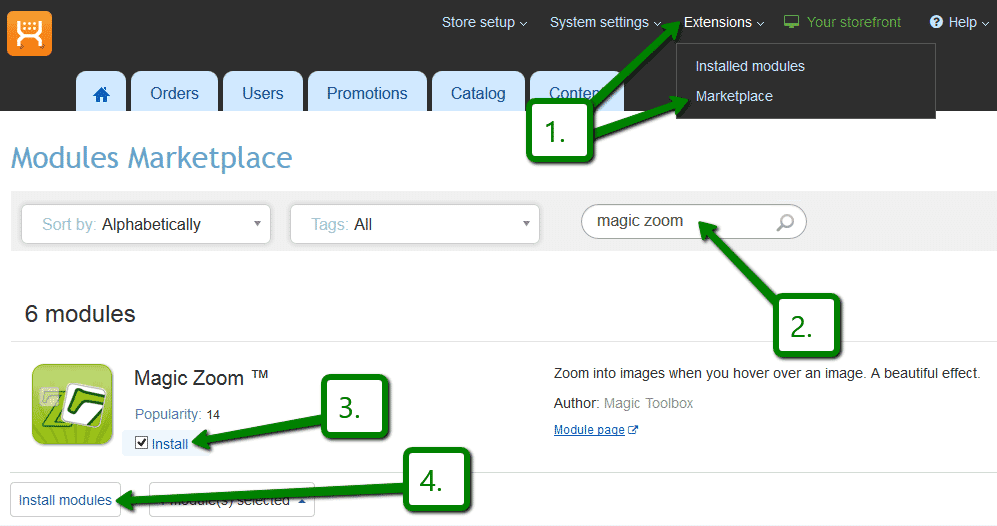
 Go to: the Admin area of your store > Extensions > Marketplace.
- Enter 'Magic Zoom' in the search field.
- Tick checkbox 'Install' next to Magic Zoom module name.
- Click 'Install modules' button
- Magic Zoom is now installed.
- To customize Magic Zoom, go to: Extensions > Installed modules > Magic Zoom module > Click 'Settings'. Configure how you would like Magic Zoom to look on your website.
Manual integration
Alternatively, you can follow these instructions to install Magic Zoom manually on your X-Cart 5 website.
- If a previous version of the module is installed, uninstall it.
- Download Magic Zoom for X-Cart 5 (free and fully functional demo version).
- Unzip the contents of the ZIP file and upload the classes and skin folders to your X-Cart 5 directory.
- Login to your X-Cart 5 admin area and re-build the cache: System settings -> Re-build cache link in the menu.
- Enable the Magic Zoom module on the 'Installed Modules' page and press 'Save changes' button via Extensions > Installed modules.
- Go to the Magic Zoom module settings page via Extensions > Installed modules > Magic Zoom settings and configure Magic Zoom how you want it.
- Magic Zoom is ready to use!
- Buy Magic Zoom To upgrade your free and fully functional trial version of Magic Zoom (which removes the "Trial version" text), buy Magic Zoom and overwrite following file with the same one from your licensed version:
skins/customer/modules/MagicToolbox/MagicZoom/js/magiczoom.js
Multiple images
Swapping between many images is already a standard feature in Magic Zoom. But if you have lots of images, the page can look complicated.
Make your thumbnails look slick and organised with Magic Scroll for X-Cart. It neatly contains the images adds arrows to slide between them. Example:









- Simply activate Magic Scroll on the Magic Zoom options page.
- To remove the "Please upgrade" text, buy a license and overwrite the /[current skin directory]/magictoolbox/core/magicscroll.js file with that from your licensed version.
Spin + Zoom (X-Cart 4.x)




Combine an image zoom + 360 JavaScript spin on your product page (like the example above).
- Install the X-Cart extension for Magic Zoom.
- Install the X-Cart extension for Magic 360.
- Create a new product or open an existing one.
-
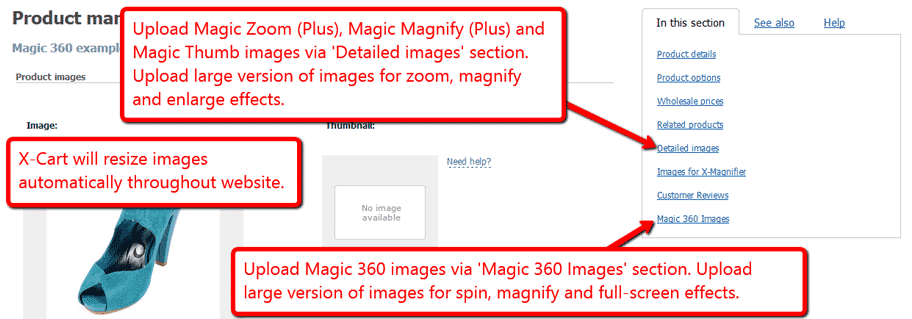
 Upload your zoom and enlarge images via the 'Detailed images' section. Upload your 360 spin images via the 'Magic 360 Images' section.
Product variants (X-Cart 5)






Do your products come in different colours or styles?
Magic Zoom supports X-Cart 5 product variants out of the box.
Configure products so each variant has its own zoomable image.
Using variants keeps your page clutter free, at the same time displaying all your wares.
Uninstallation
Thanks for trying Magic Zoom on your X-Cart site! What did you hope Magic Zoom could do? How can we improve it? Let us know, we're always improving our tools based on customer feedback.
- Go to http://www.yoursite.url/magiczoom/ in your browser > click 'Uninstall' (replace yoursite.url with your domain name).
- Delete the magiczoom folder from the root of your X-Cart directory (on your server).
- Magic Zoom is now uninstalled.
- Login to your X-Cart 5 admin area.
- Go to: Extensions > Installed modules > Find Magic Zoom > Click 'basket' icon to uninstall Magic Zoom.
- Magic Zoom is now uninstalled.
Customer reviews
Paul
Submit your review
Your review has been received and will be posted soon.
Other X-Cart modules
Try our other great image effects!
 Magic Zoom Plus
 Magic Thumb
 Magic 360
 Magic Slideshow
 Magic Scroll